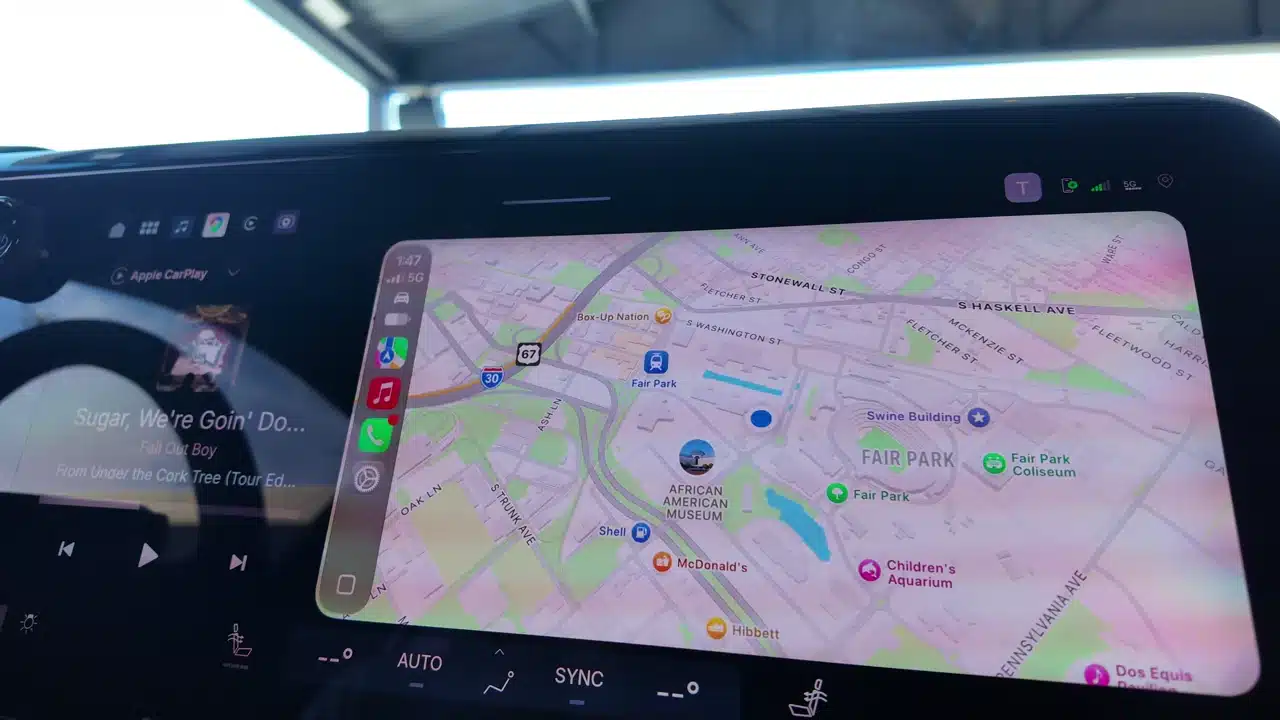
After all the headlines about GM dropping Apple CarPlay and Android Auto, sitting in one of its new trucks at the Texas State Fair felt like a good time to ask how these systems are supposed to get along. CarPlay was right there on the screen. So was GM’s own interface. And the demonstration gave me a better explanation of why the company wants both visible at once.
The interesting part was how the phone and the truck could work together. I could see the familiar phone interface while keeping access to the truck’s own features. Colin McCormick, GM’s group product manager for Google built-in, projection and profiles, walked me through it and explained what the company had learned from studying how people use these systems.
First, the CarPlay controversy needs some context
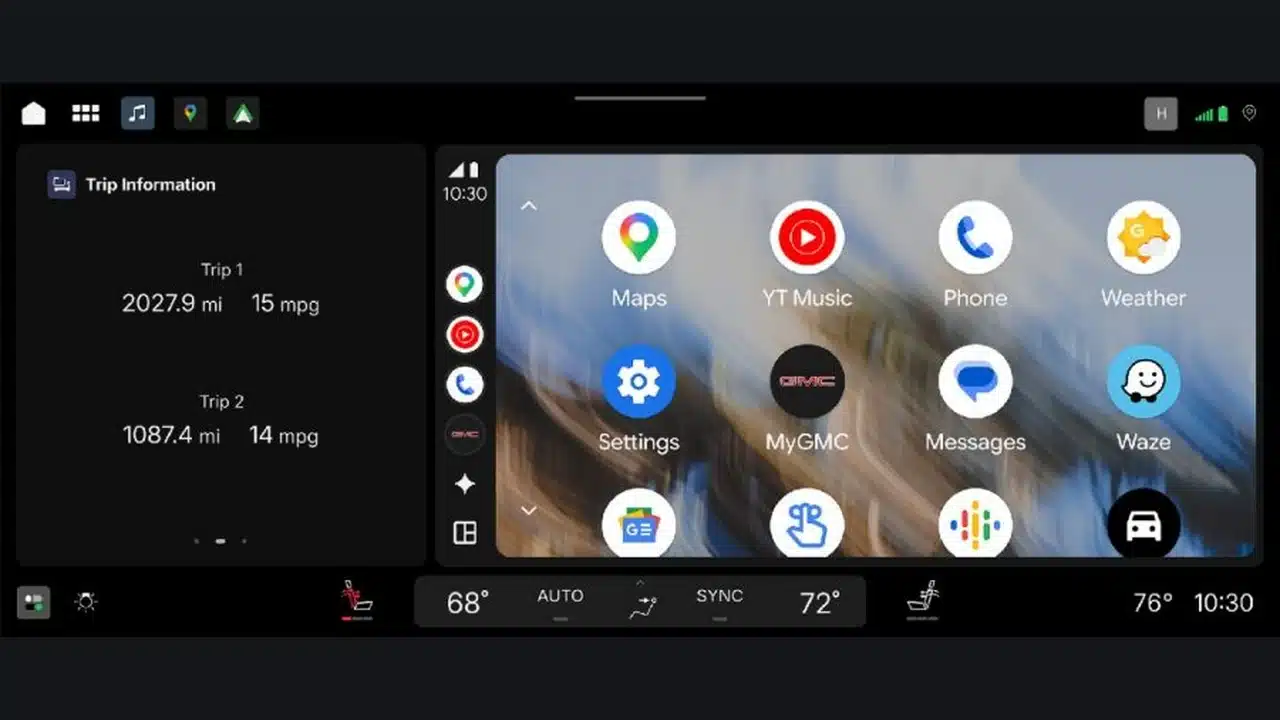
We have already reported that the 2027 Chevrolet Silverado and GMC Sierra keep Apple CarPlay and Android Auto. That matters after GM’s move away from phone projection in its newer EVs and its discussion of eventually moving gasoline vehicles toward its own software, too. It is easy to come away from those headlines thinking CarPlay is disappearing from every GM showroom.
The new light-duty pickups show that is not the situation here. They retain phone projection and give it a place alongside the native truck interface. This demonstration does not establish a reversal for GM’s EVs. It shows how GM is incorporating the phone apps into these trucks, which is the part I wanted to understand in person.
GM lets the phone and truck share the job
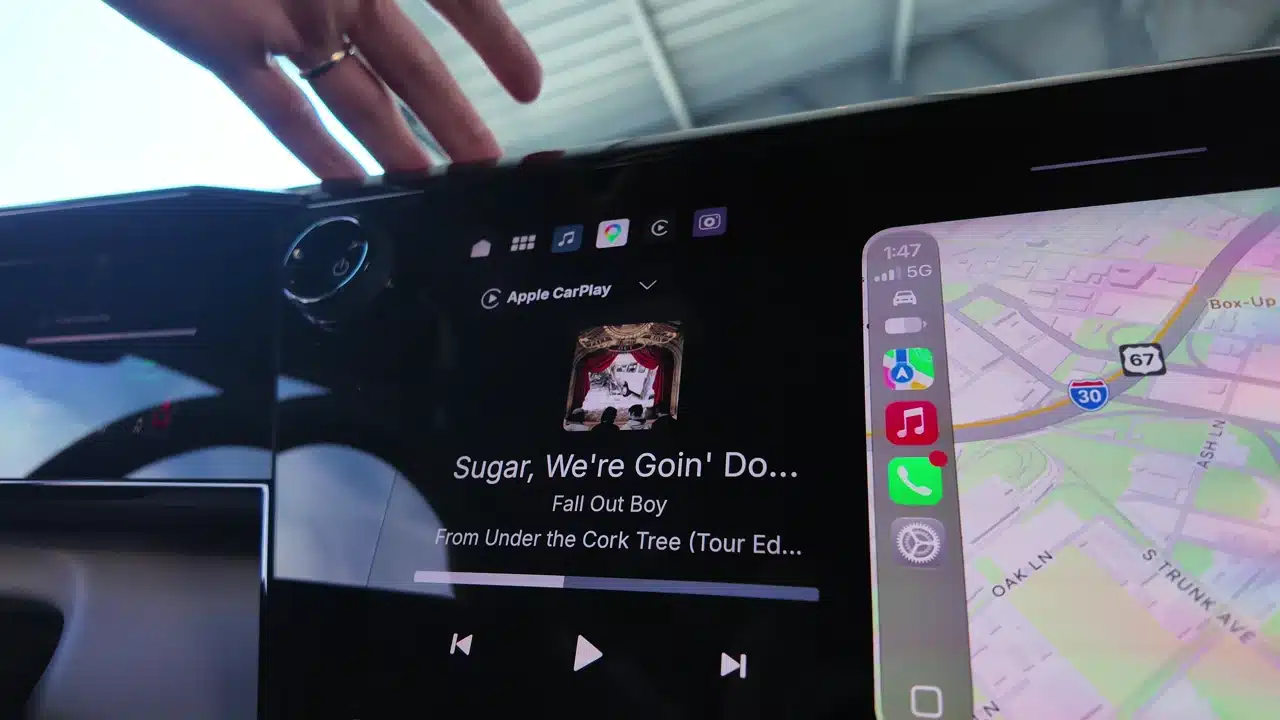
During the demonstration, we walked through the audio source controls and the relationship between CarPlay and the truck’s built-in functions. One combination we discussed was native navigation in one area with CarPlay in another. The source shortcut also gave us a way to move between audio sources.
GM describes the arrangement in its announcement of the new interface: CarPlay or Android Auto appears in a large card alongside native features such as trailering and vehicle status. That gives the phone a useful place on the display while keeping the truck’s own capabilities within reach.
That is what I mean by making friends. You can use the phone experience you know without treating everything the truck can do as a separate destination. The conversation in my video also gets into the different icon rows and why the native map can make the overall arrangement look cleaner.
The truck’s own software also brings some useful new ideas to the screen. In a separate demonstration, I saw illustrated boat-launching guidance, a guided trailer brake-gain setup and navigation that uses trailer dimensions. Those are good examples of why I want easy access to the truck’s features alongside my phone apps. I take a closer look at them in my GM trailering-tech and boat-ramp demo.
GM says full-screen takeovers confused users
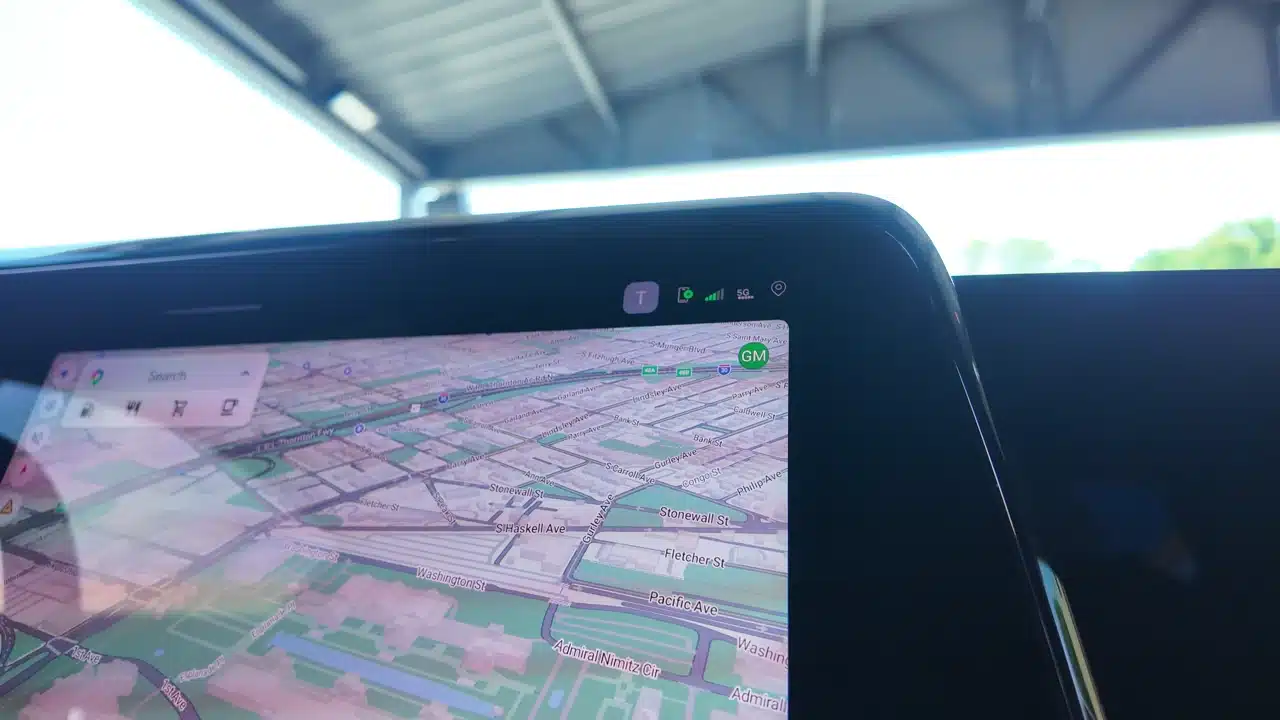
The most useful explanation came when McCormick described studies comparing CarPlay, Android Auto and Google built-in. According to McCormick, some people did not understand whether they were using phone projection or the native system when projection took over the full display. The truck’s own interface effectively disappeared from view.
Keeping the two visible gives the driver a clearer reference point. As McCormick put it, the systems “play with each other instead of competing for your attention.” That is a more interesting reason for this layout than simply deciding how large to make a CarPlay window.
It also lines up with GM’s separately published interview with software product management executive Michael Wahlstrom. He explained that customers want familiar phone functions along with quick access to the vehicle’s capabilities. That interview was conducted by GM; the explanation about users confusing the two systems came during my State Fair demonstration.
Climate, remote start and the truck’s own smart controls
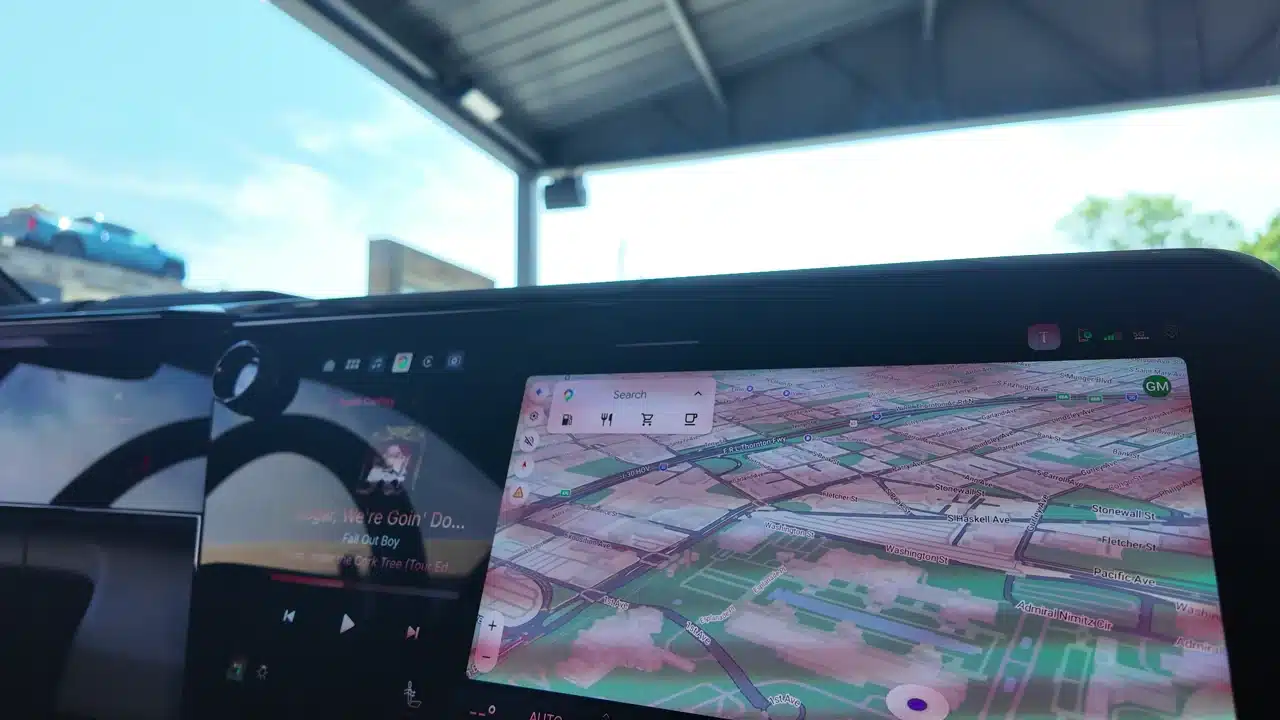
My 2027 GMC Sierra Denali Ultimate interior walkaround shows how much more there is to this approach. You can choose the smaller home-screen card’s content, including audio, vehicle status or trailering, and rearrange pinned apps. The native map remains interactive in the split view, so you can search for a destination without first abandoning that layout. That gives the space beside your phone interface a useful job.
The climate-control demonstration is another good example. GM keeps climate controls visible on the screen instead of making you hunt through an app grid to find them. Physical switches remain, and tapping the center of the climate bar opens additional controls. The display truck was running on an inverter, so this was a walkthrough of the interface; I could not try the heated and ventilated seats in operation.
There is also the comfort side of remote start: using outside temperatures to prepare the cabin with heat or cooling and activate the available heated or ventilated seats. App controls can let you dial in the cabin temperature before getting in. GMC’s myGMC remote-command guide describes temperature adjustment through its Climate widget on supported vehicles. Available controls depend on the vehicle’s equipment and service plan.
Even opening the garage gets a rethink. In the walkaround, GM showed how a saved garage-door control can appear as you approach its location. You can bring up a panel for multiple garage bays, and a second location can have its own controls. Shift into reverse and the interface can surface relevant parking and braking controls instead. These are small details, but they explain why the truck’s software deserves a place beside the phone apps.
The Denali Ultimate demonstration also covered an available passenger screen with a privacy filter and a separate entertainment interface. From the center screen, the driver can manage audio output or lock the passenger display. There is a lot to cover here, and equipment varies by trim, but the common idea is putting useful controls within reach.
In the CarPlay video, I said I would not want CarPlay stretched across that entire large display. To me, that would waste space I could use for something else. Seeing the two areas together made the arrangement easier to understand, and I liked having more control over what was in front of me.
The hands-on portion focused on CarPlay. We discussed Android Auto using the same general arrangement, and GM’s published announcement confirms both systems are integrated with the native interface. I did not run a separate Android Auto comparison during this clip, so I would not call it a side-by-side test of the two phone platforms.
I still want time with this setup in everyday use, including navigation, phone connections and towing. A short demonstration cannot settle all of that. But it did answer the question I had going into the truck: GM has found a way to give the phone and its own software room to work together. For buyers who want their familiar apps and their truck-specific features in the same place, that is the part worth seeing.