More torque gets the attention, but some of the most useful changes in a truck are the things that make hooking up a trailer less confusing. At the Texas State Fair, I sat in a new Chevrolet truck for a demonstration of GM’s trailering technology. We went through trailer-aware navigation, a guided brake-gain setup, boat-ramp help and a screen that explains the weight ratings owners argue about all the time.
This was a stationary demonstration, not a towing test. Some of the truck’s information was in demo mode, and the representative used deliberately large trailer dimensions to show how the navigation responds. Even with that limitation, there was plenty here worth a closer look.
Google Maps uses the trailer information

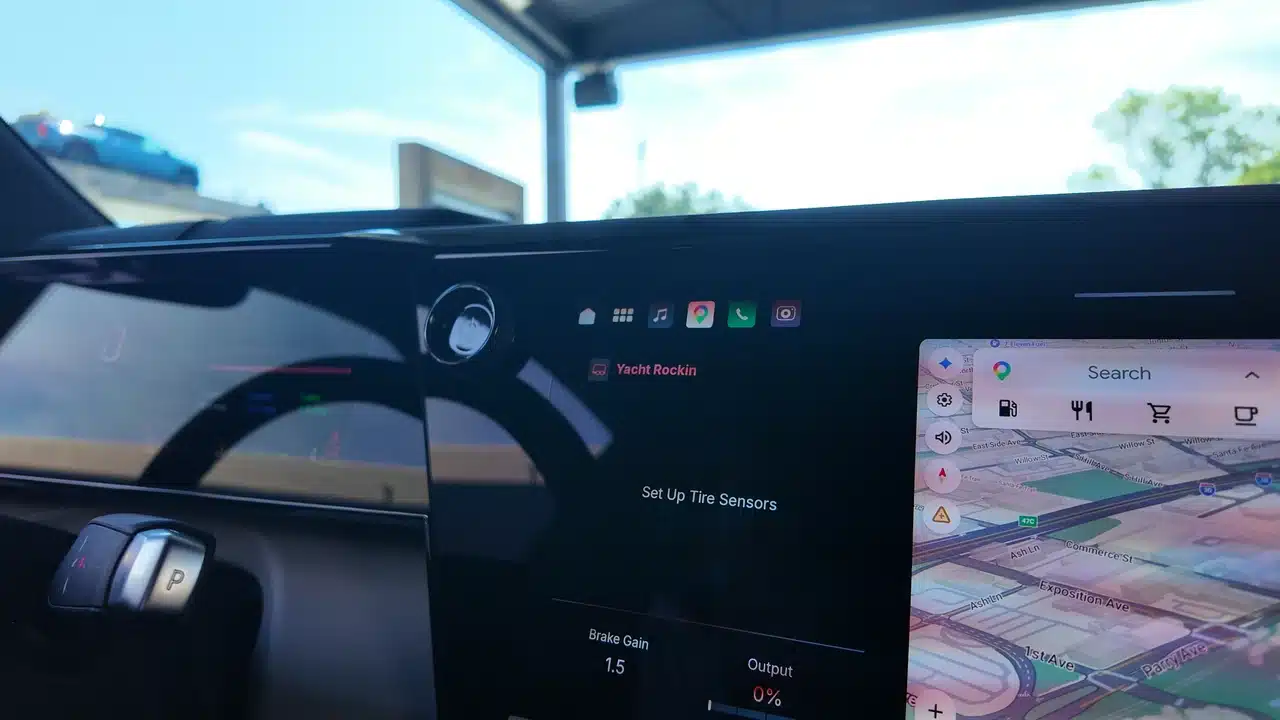
The demonstration began with a trailer connector being plugged in and the trailering screen coming up. The representative showed a customizable home-screen card with trailer information, including brake gain and output. He said trailer tire information would also appear there when the appropriate sensors are fitted.
The next step was navigation. Once the trailer profile was set up with its dimensions, the representative opened Google Maps and entered a destination. The idea is that the truck already knows about the attached trailer, so the driver does not have to enter that information again in Maps.
In our example, the trailer dimensions were intentionally exaggerated. The first result warned that the proposed route was not suitable, and tapping the trailer icon showed the height restriction. After processing, the system found a route around the problem. The representative also explained that it can flag route restrictions involving dangerous goods. That is a useful demonstration of the feature; it does not remove the driver’s responsibility to check the trailer dimensions and the route.
A guided test helps set trailer brake gain
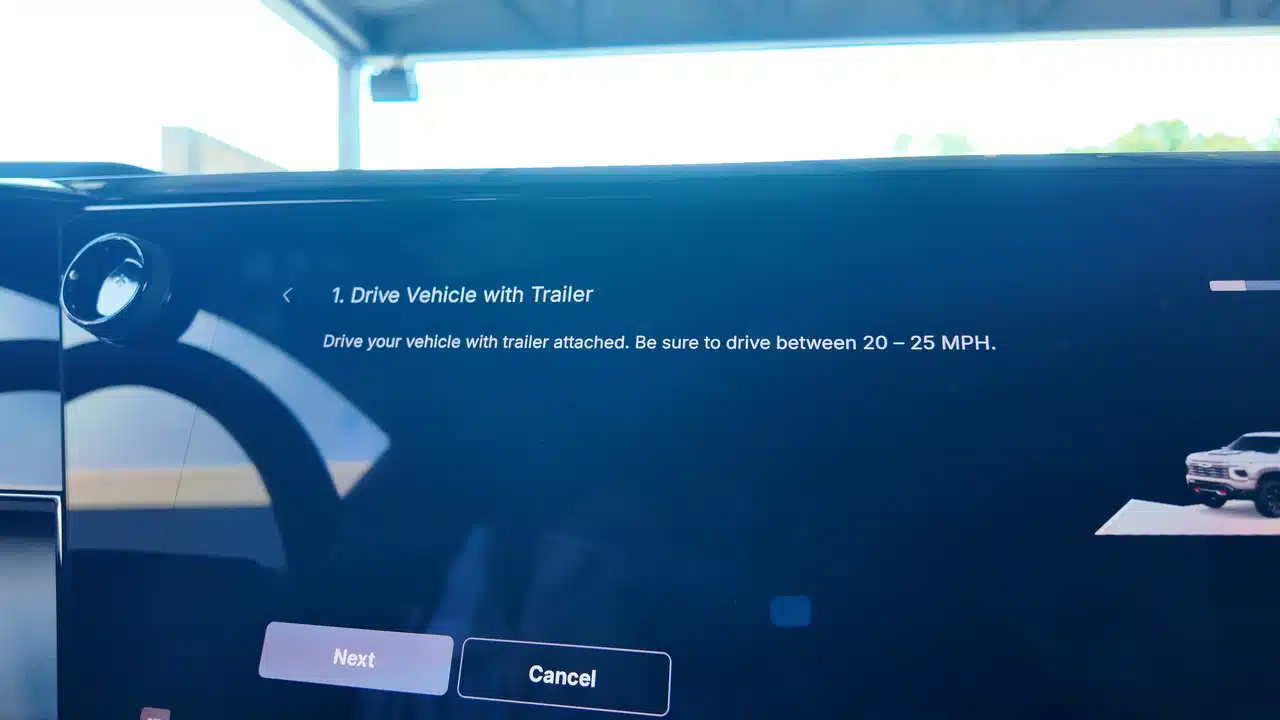
I wanted to go back to the brake-gain feature because that is something many owners have had to learn through experience. Instead of simply leaving you with a number and asking you to figure it out, the app walks through a test and provides a suggested gain setting for the trailer.
The representative described a four-step process, with check marks as the required conditions are met. The screen we looked at included an instruction to drive with the trailer attached as part of that process. We did not perform the road test at the show, so I cannot tell you how well the suggested setting worked with a loaded trailer. What I could see was a clearer explanation of what to do next.
Boat-ramp help puts the steps on the screen
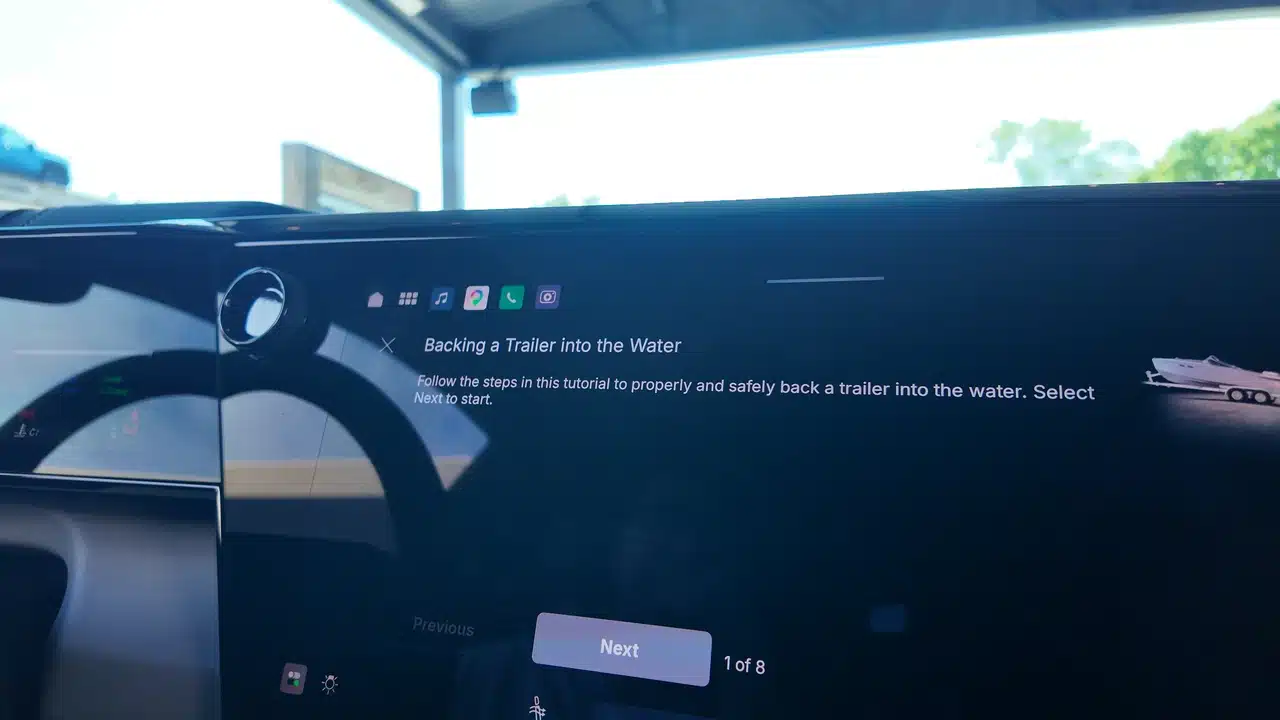
The boat-ramp feature was another one that made me stop and look. It showed prompts involving the trailer connector, four-wheel drive, Park and the parking brake, along with an illustrated tutorial for launching a boat. Those prompts appeared in the context of the on-screen demonstration, rather than as a universal checklist for every truck and ramp.
I like the idea of making that information easy to find. A first-time boat owner may benefit more from a clear illustration at the moment it is needed than from being told to go read the entire owner’s manual. I still want to try the feature in use, but the presentation was easy to understand.
Trailer profiles and weight ratings get easier to find
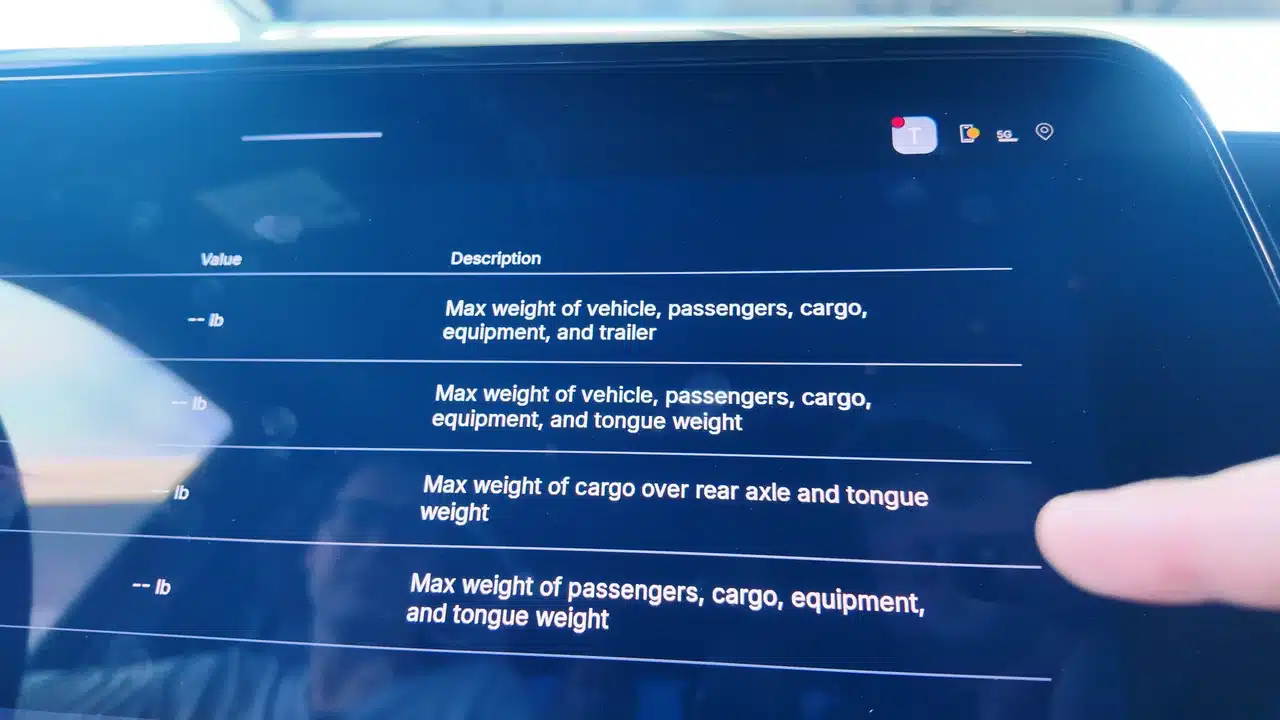
We also discussed importing saved trailer profiles from the myChevrolet app. The example was moving between compatible vehicles without manually rebuilding the trailer setup each time. The representative explained that a trailer light test can also be run from the mobile app, which could save some trips between the driver’s seat and the back of the trailer.
Then we got to the weight-rating definitions. The truck’s display explained items such as gross combined weight rating, maximum payload, maximum trailer weight, tongue weight and curb weight. The numerical values were not populated because of the demonstration state, so there were no truck-specific capacities to report from that screen.
One detail I was glad to see spelled out was tongue weight counting toward payload. I have explained that in plenty of videos, and it still generates arguments. Showing the definition in the truck gives owners another place to check what the number means. These features will need a real towing test, but as a first look, I came away interested in how much of the setup and explanation GM has brought together in the truck.